 Boost recurring donations this giving season with the upsell prompt!
How you view and manage Live Displays in the administrator is determined by the version of the Soapbox administrator your site has: Soapbox Lightning, Soapbox Engage Classic, or Soapbox CMS Classic.
| I have the Soapbox Lightning Administrator with... |
|---|
|
| I have the Soapbox Engage Classic Administrator with... | I have the Soapbox CMS Classic Administrator with... |
|---|---|
|
|
For Soapbox sites using the Soapbox Lightning administrator:
To view and manage Live Displays, click the App Launcher waffle to the left of the navigation bar. In the App Launcher popup, do any of the following: a) in the Standard Apps section of the popup, click the Live Displays app tile and then the Displays menu item in the contextual navigation; b) scroll to the All Items section of the popup and click Live Displays > Displays; or c) type "Live Displays" in the search field and click either the Donations app tile or Live Displays > Displays in All Items in the results.
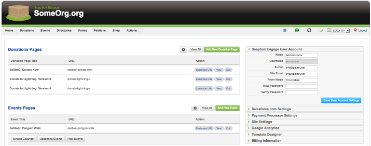
For Soapbox sites using the Soapbox Engage Classic administrator:
To view, search, and manage Live Displays, click Live Displays in the main menu. Once on the Live Displays, click Displays in the control panel. If you do not see a Live Displays menu item, please submit a support ticket.
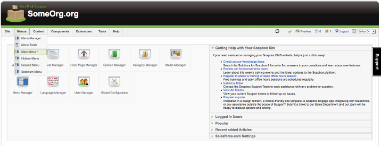
For Soapbox sites using the Soapbox CMS Classic administrator:
To view, search, and manage Live Displays within the Soapbox CMS administrator, go to Components > Live Displays > Displays in the main menu.